
How to Track AI Traffic to Your Website for Free
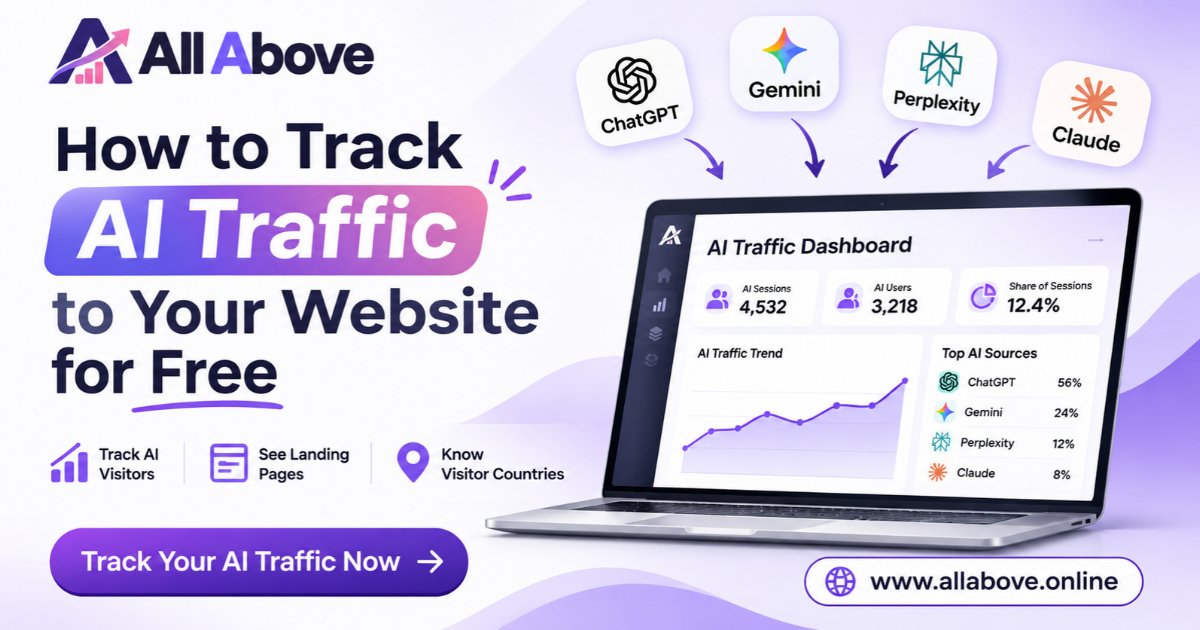
Open your Google Analytics 4 report and search for the source "chatgpt.com". If a row appears, real people are already clicking links inside AI answers and landing on your pages. If nothing appears, that does not mean you get zero visits. It usually means those visits are sitting under Direct or generic Referral, where nobody looks. Learning how to track AI traffic is now a basic part of marketing reporting, and you do not need a paid platform to do it. This guide covers three free methods: a quick manual check in GA4, a custom channel group, and a free AI traffic checker that sorts everything for you.
Quick Answer: To track AI traffic for free, open GA4 Traffic acquisition, switch the view to Session source / medium, and look for chatgpt.com, perplexity.ai, gemini.google.com, claude.ai and copilot.microsoft.com. For a permanent view, create a custom channel group with a source regex rule, or connect GA4 to a free AI traffic checker that groups these visits automatically.
What Is AI Traffic and Why Does It Matter?
AI traffic is the set of visits that arrive after a person clicks a link or citation inside an AI tool such as ChatGPT, Perplexity, Gemini, Claude or Microsoft Copilot. It is different from classic organic search because the visitor has often already read a summary of your page. They click when they want more detail, a price, or a way to contact you.
That makes these visitors worth measuring. Clicks are rare, but the person behind one is often close to a decision. If you cannot see those visits, you cannot tell which pages AI tools trust or repeat what works.
Why AI Referral Traffic in GA4 Is Hard to See
Many website owners assume that AI referral traffic in GA4 will show up in its own tidy report. In practice it is scattered. Some visits arrive with a clear referrer such as chatgpt.com. Others come through mobile apps, which often strip the referrer and land in Direct.
GA4 has been improving how it labels AI sources, and you may already see an AI assistants style channel in your reports. Coverage is not complete, though, and Google has not published a full list of the platforms it recognises. That is why a custom setup is still worth the ten minutes it takes.
Method 1: Check Your GA4 Reports Manually
This is the fastest way to track AI traffic and it costs nothing. Follow these steps.
- Open GA4 and go to Reports, then Acquisition, then Traffic acquisition.
- Change the primary dimension to Session source / medium.
- Use the search box to look for chatgpt, perplexity, gemini, claude and copilot one at a time.
- Set the date range to the last 90 days, since AI visits are small.
If you see rows, note the sessions and engagement for a quick baseline. The weakness is that you must repeat it by hand and never see a combined total.
Method 2: Build a Custom Channel Group for AI Traffic
A custom channel group gives you one permanent line in your reports called AI Traffic. Google explains the feature in its custom channel groups help page, and the setup is short.
- In GA4, open Admin, then Data display, then Channel groups.
- Create a new channel group and add a channel named AI Traffic.
- Set the condition to Source matches regex.
- Paste this pattern: chatgpt\.com|chat\.openai\.com|perplexity|gemini\.google\.com|claude\.ai|copilot\.microsoft\.com|deepseek|grok\.com
- Move the AI Traffic channel above Referral so it is matched first, then save.
Custom channel groups apply to your historical data as well, so you get a useful before and after picture straight away. The team at Ahrefs also shares a useful list of sources in its guide on tracking and analyzing AI traffic, which is handy when you want to extend your pattern.
Method 3: Use a Free AI Traffic Checker
Not everyone wants to edit channel groups, and agencies managing many sites need something faster. This is where an AI traffic checker helps. Our free AI Traffic Tracker connects to your GA4 property and shows the sessions that came from AI platforms, with no regex and no report building. You can also download the results as a PDF or Excel file, which is useful when a client asks for proof.
Use the manual check to learn how the data looks, and the tool when you want a repeatable answer in a few clicks.
How to Track ChatGPT Traffic in Google Analytics
ChatGPT is usually the first platform people want to measure, so here is the short version of how to see ChatGPT traffic in Google Analytics.
Search for both chatgpt.com and chat.openai.com in Session source, because older links may still use the second domain. ChatGPT search often adds a utm_source=chatgpt.com tag to outbound links, so you can also look at your Session campaign or source reports for that value. Visits from the mobile app may arrive with no referrer at all, so they show as Direct. Treat your ChatGPT number as a minimum, not an exact total.
What to Do With Your AI Traffic Data
Once you can track AI traffic, ask three questions.
- Which landing pages receive AI visits? These are the pages AI tools already trust, so keep them accurate and updated.
- Do AI visitors take action? Check key events such as form submissions and calls, not just sessions.
- Which pages get none? Improve them first.
Several free tools can help with the next steps. Run your key pages through the AI Visibility Checker to see how ready they are for AI answers. Use AI Page Keywords to see which search terms each page ranks for. Fix structural gaps with the SEO Audit Tool, add structured data with the Schema Markup Generator, and strengthen page connections with the Internal Link Checker. You should also confirm that AI crawlers are not blocked by accident, which you can manage with the Robots.txt Generator.
Frequently Asked Questions
Can I track AI traffic without paying for a tool?
Yes. GA4 is free, and so are the custom channel group method and our AI Traffic Tracker. Paid platforms add brand mention monitoring, but they are not required to measure visits.
Why is my AI traffic so low?
Most websites still receive a small share of visits from AI tools compared with organic search. Low numbers are normal, and the value is in how engaged those visitors are.
Does GA4 track Perplexity and Claude traffic?
It can, when the referrer is passed. Perplexity and Claude visits often appear as plain Referral until you group them with a custom channel, which is why the regex method is worth setting up.
Start to Track AI Traffic Today
You now have three free ways to track AI traffic: a quick manual check, a permanent custom channel group, and a ready-made checker. Start with the manual search today, set up the channel group this week, and use the data to improve the pages AI tools already like. If you want the fastest route, try the free AI Traffic Tracker on All Above and see your numbers in minutes.